The Remote Assistance utility is a "screen sharing" tool that will allow your ET Web Hosting helpdesk technician to "see" your computer screen. This is often helpful to quickly diagnose and fix problems, because the technician will be able to see exactly what you are seeing on your computer.
The Remote Assistance utility is 100% safe and secure. It uses an encrypted data transmission directly between your computer and the technician's computer. You can also stop the Remote Assistance utility at any time (see step 6 below).
1. Click the link below to begin.
PcHelpWare_server.exe (325kb)
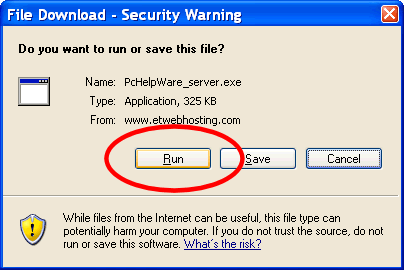
2. If prompted, click the Run button. (It might take a few seconds or minutes to download the file, depending on the speed of your internet connection.)
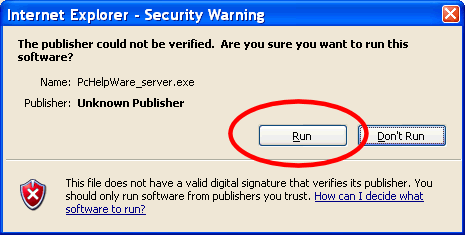
3. After the file is finished downloading to your computer, you should see another "Security Warning" popup. Click the Run button again.
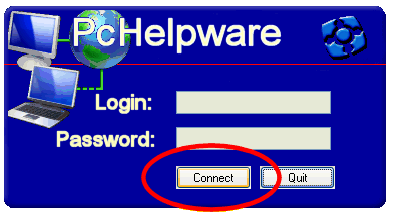
4. Click the Connect button to begin the Remote Assistance session. Your computer will now try to connect to the ET Web Hosting technician's computer, and you will see a little status window with information about the connection.
5. If the connection attempt is successful, your ET Web Hosting technician should now be able to see your computer screen.
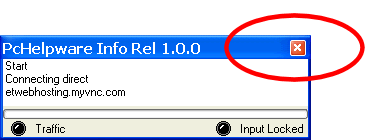
6. You can close the Remote Assistance utility and disconnect the connection at any time by clicking the red X on the status display window.
The Remote Assistance session will also also close automatically if the helpdesk technician cancels it.